 @H5mag
Keeping an area always visible
To make a specific element stay visible on the screen while the rest of the content scrolls, you need to lock the main article page and place the main content inside a separate scrollable section. Any element left outside that scrollable section will remain fixed in place.
Steps
- Select the Article, then navigate to Styling and set Overflow Y to Fixed Page (no scroll).
- Create a new section inside the article: right-click the Article and select Add area -> Section.
- Select the new section, open Styling and set the following:
- - Overflow to Scroll
- - Width to 100%
- - Height to the article's height (usually 720px).
- - You may also have to set the Positioning to In Flow.
- Drag and drop all existing content areas into this newly created section.
- Place any new element directly inside the article (outside the scrollable section). This element will now stay fixed on the screen while the section content scrolls. Position it freely as needed.
Example usage
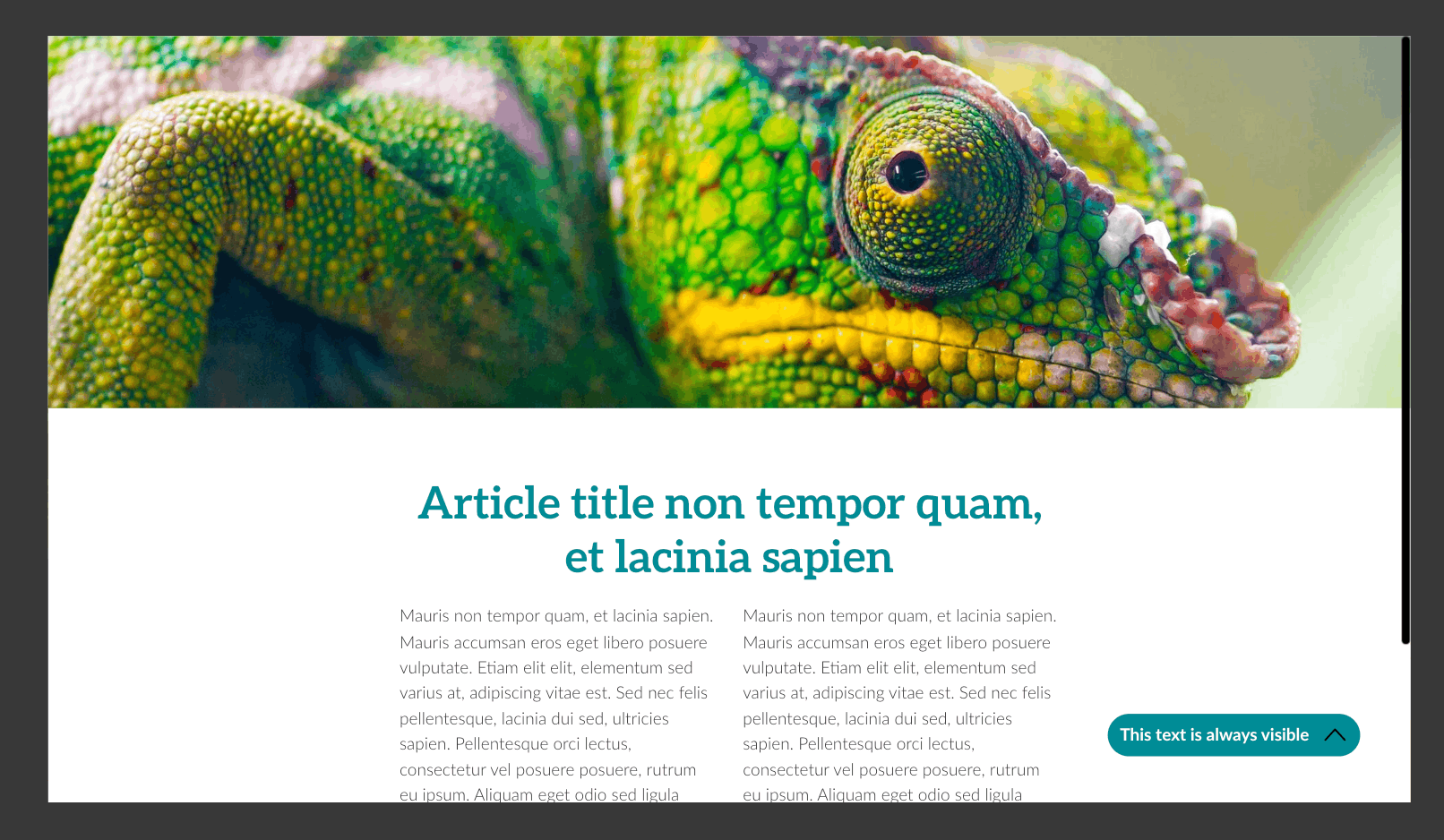
An always visible button in the bottom right corner:
Last modified: